Classification
The AI Classification tool automatically identifies and segments semantic categories within a 3D scene. Users can choose among three predefined classes: buildings, roads, and trees. Please note that this tool is specifically designed to operate on dense point clouds and meshes generated from aerial datasets.
The Classification process internally includes the Ground Extraction filter, which is enabled by default to improve terrain separation during object segmentation.
Upon completion, 3DF Zephyr will automatically generate and append new 3D model layers for each enabled category in the Project tab. This allows users to efficiently visualize, manage, and export classified data within the workspace.
Note: 3DF Zephyr will download the required machine learning models during the initial use. Therefore, an internet connection is necessary.
The Classification tool can be launched from the Tools > Mesh filters > Classification menu.
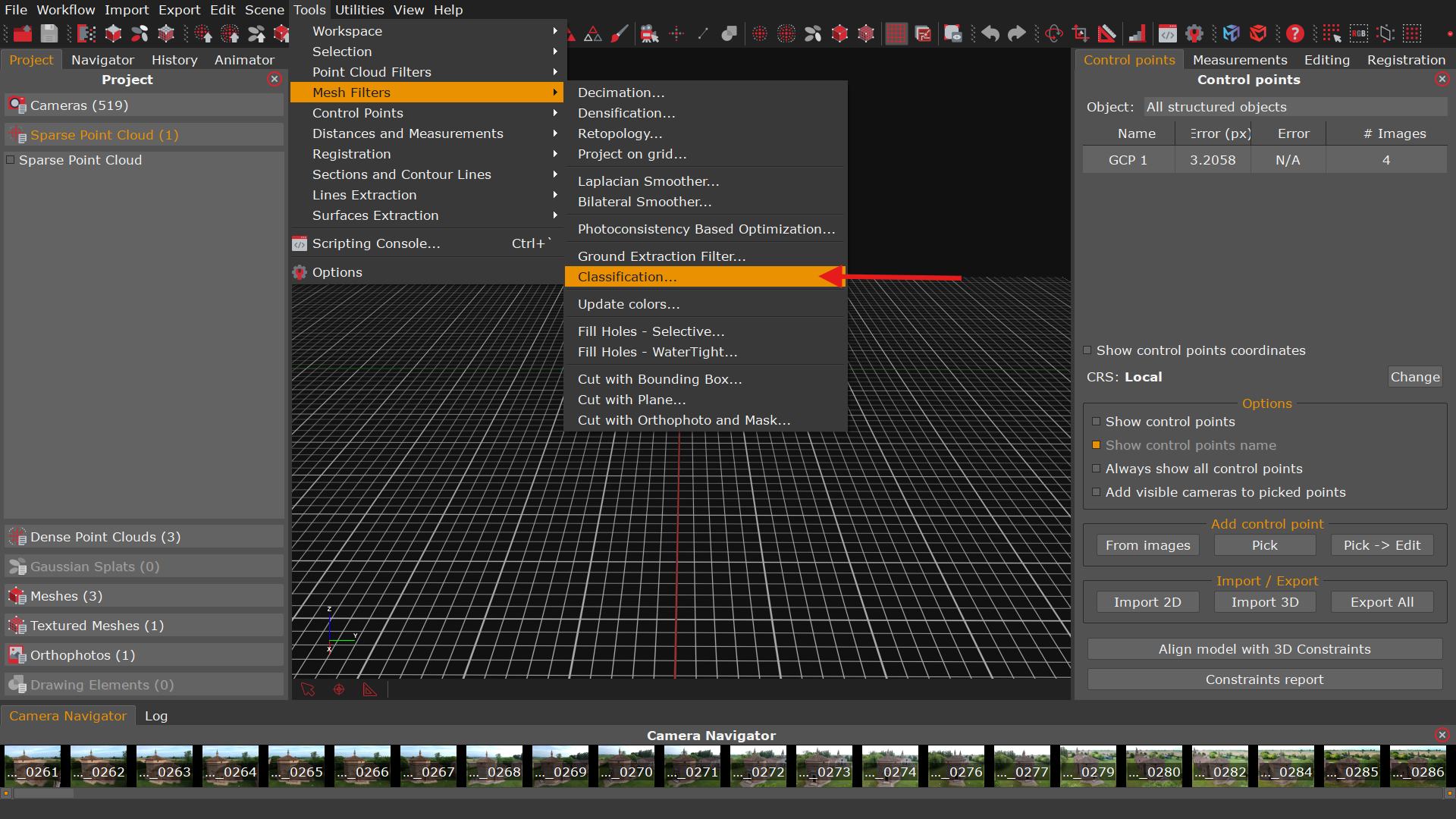
Once opened, the Object Classification window displays the following configuration sections:
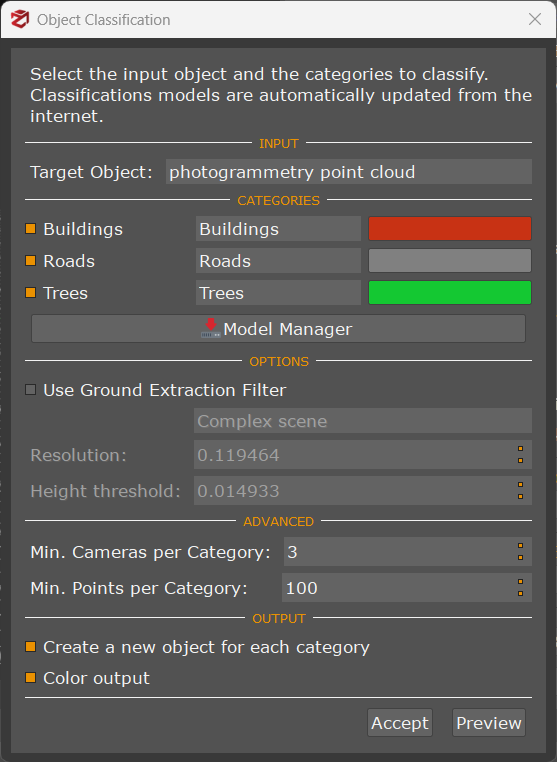
- Input section: Selects the Target object from the list of available point clouds or meshes to be processed.
- Category section: This section allows users to enable or disable individual object classes for extraction. The first column lets you assign a custom classification model to each class. The second column allows you to assign a custom display color by clicking on the respective color option.
- Model Manager: Allows you to manage the AI classification models used in the tool.
- Options section: This section contains the Ground Extraction parameters, which are active by default but can be disabled if desired.
- Advanced section: This section provides control over filtering thresholds for classification, increasing either value reduces noise and discards smaller, less reliable segments:
– Min. cameras per category: Sets the minimum number of camera observations required for a point to be considered valid for classification.
– Min. points per category: Defines the minimum number of points needed for a class to be retained in the output.
- Output section: This section provides options for managing classification outputs:
– Create new object for each category: When enabled, Zephyr will generate separate objects for each selected class.
– Generate color output: Optionally generates a colorized version of the classified result for visual inspection.
Clicking the “Preview” button will visualize the classification results within the 3D workspace, allowing the user to double-check the parameter settings before final processing.